How DomFleet works
Drivers check vehicles in and out with a photo on their own phone. Admins see who has every vehicle, and who had it when a toll, ticket or dent shows up. Here's every screen, step by step.
Screens show sample vehicles and drivers. The names and plates are made up.
For drivers: a photo and a tap
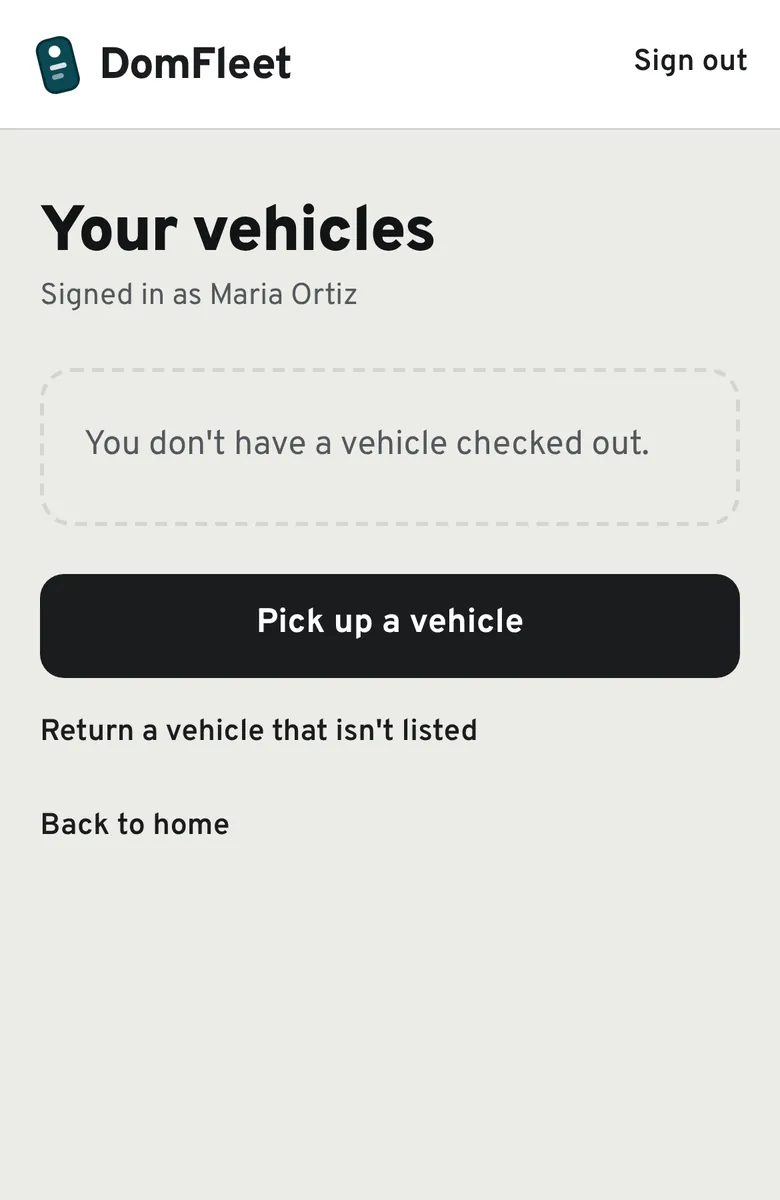
Step 1: Open DomFleet and tap Pick up
Drivers log in on their own phone and see what they have checked out right now. No app store download: it saves to the home screen like an app.
Step 2: Snap the plate
DomFleet reads the plate and matches it to a vehicle in your fleet. Nobody types a vehicle number unless the photo can't be read, and then an admin has to approve it.
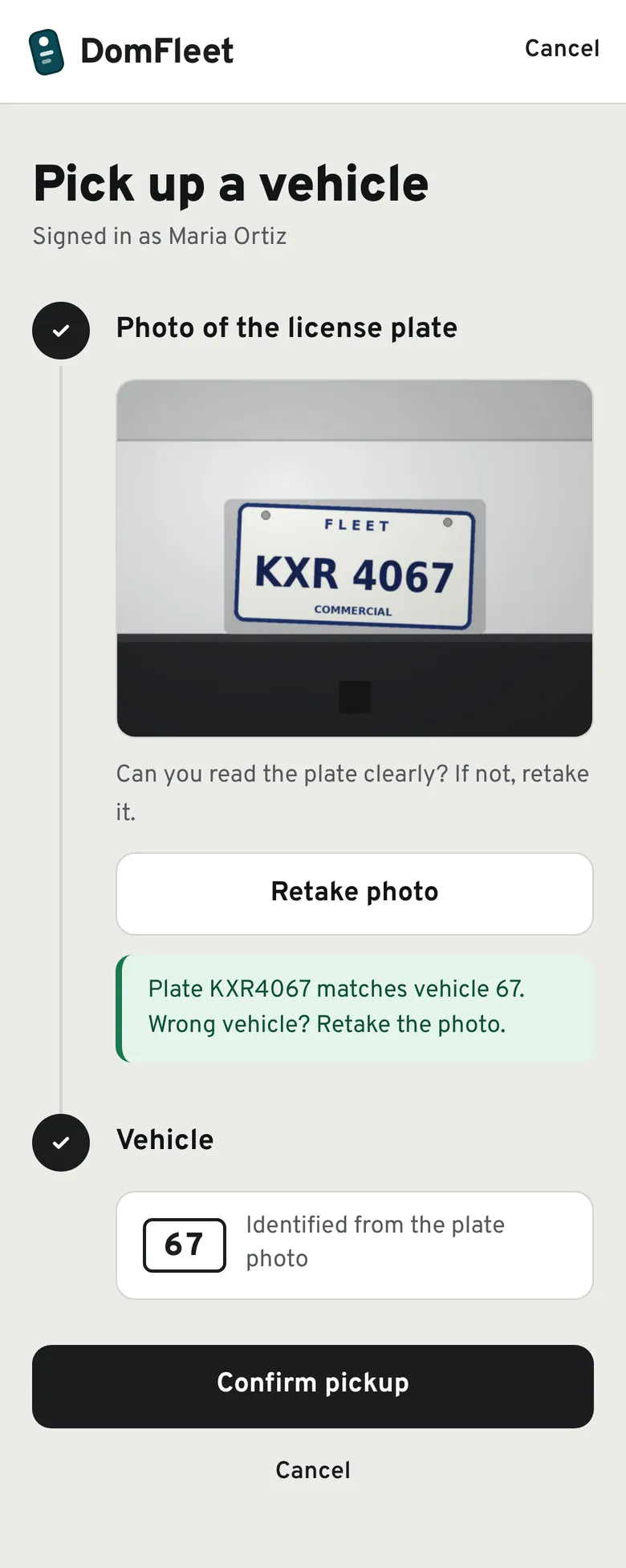
Step 3: Confirm. It's under their name.
One tap and the vehicle is checked out to that driver, with the time and the photo saved. It stays theirs until they return it or someone else checks it out.
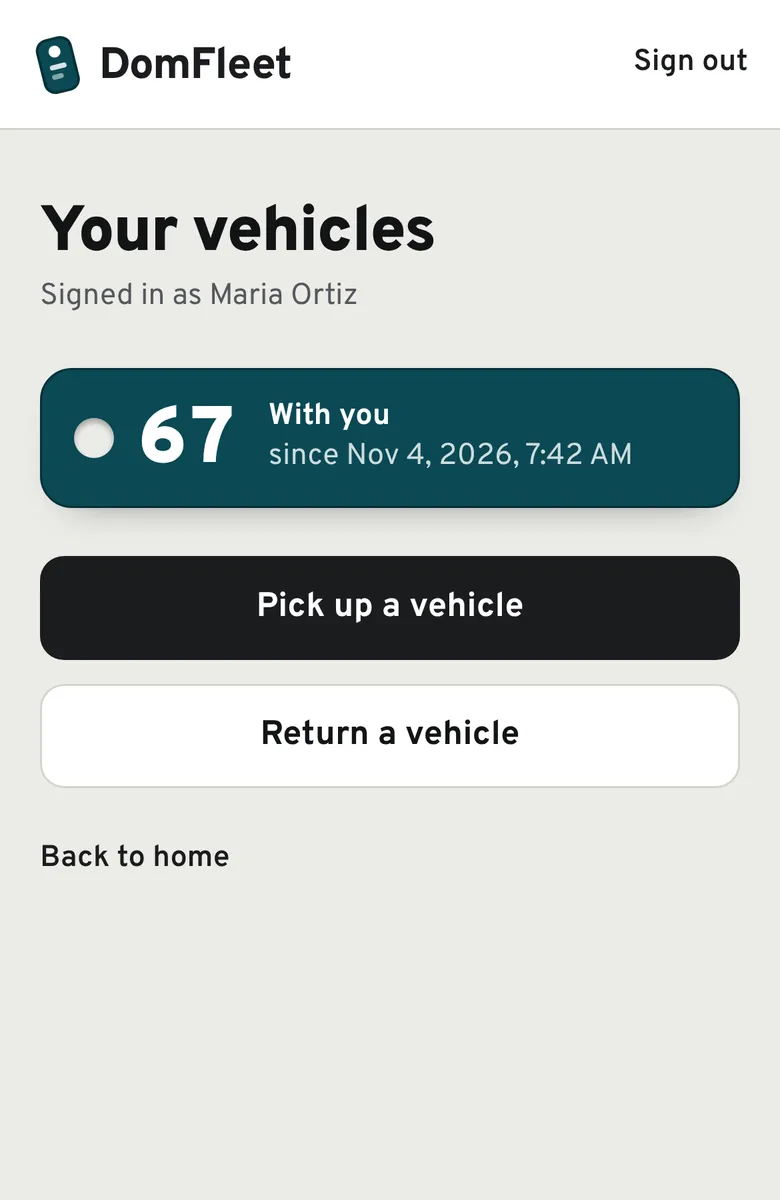
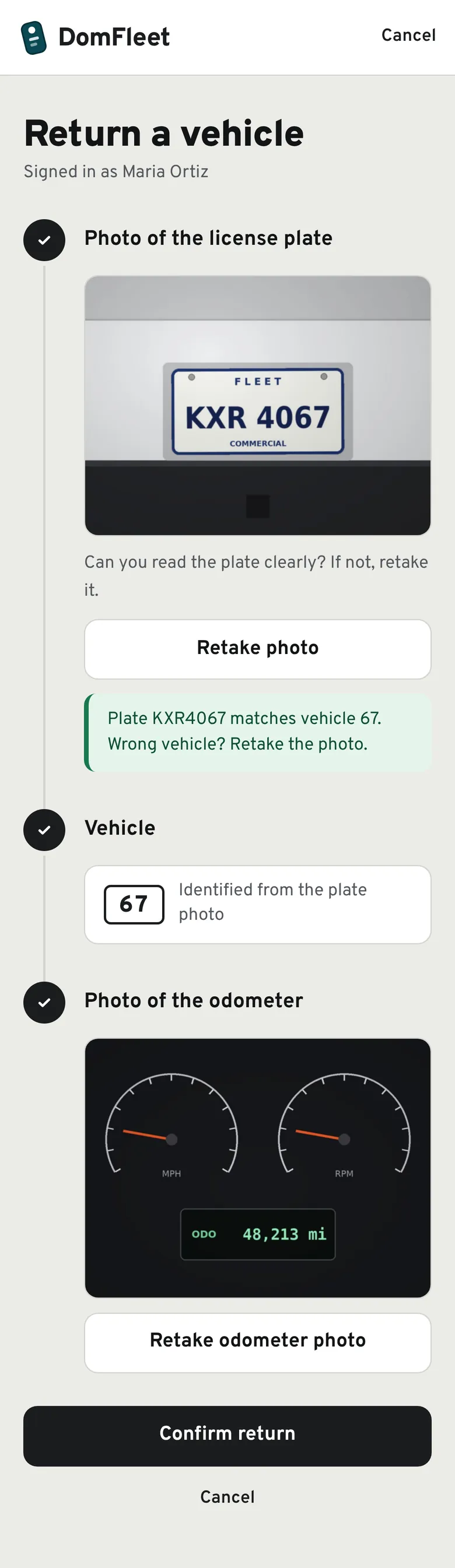
Step 4: Return it the same way
On return, the driver snaps the plate and the odometer, so you get the mileage too.
For admins: answers with proof
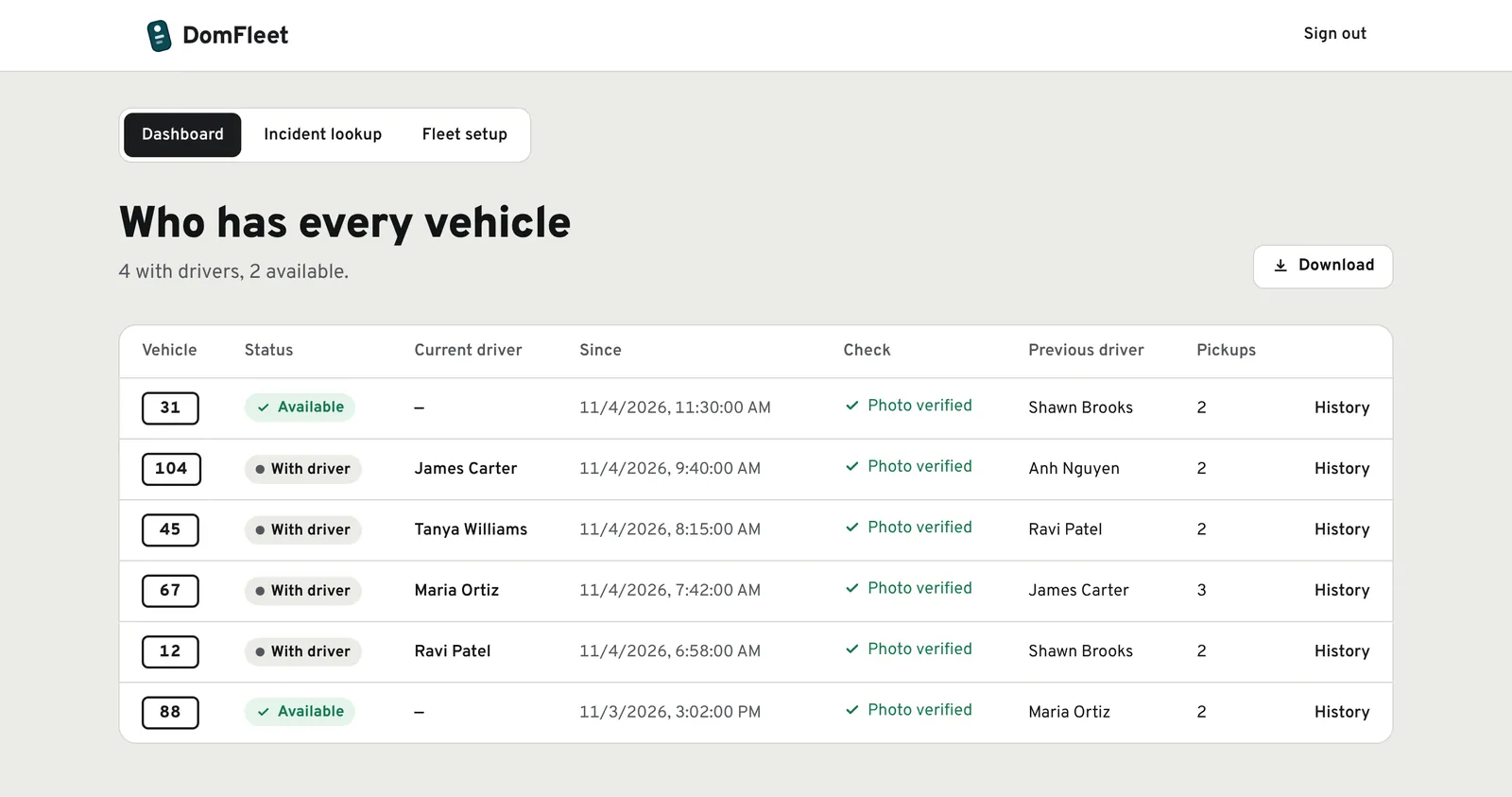
Step 5: See who has every vehicle
The dashboard shows each vehicle's current driver, since when, the previous driver, and whether each handoff was photo-verified.
Step 6: Open any vehicle's history
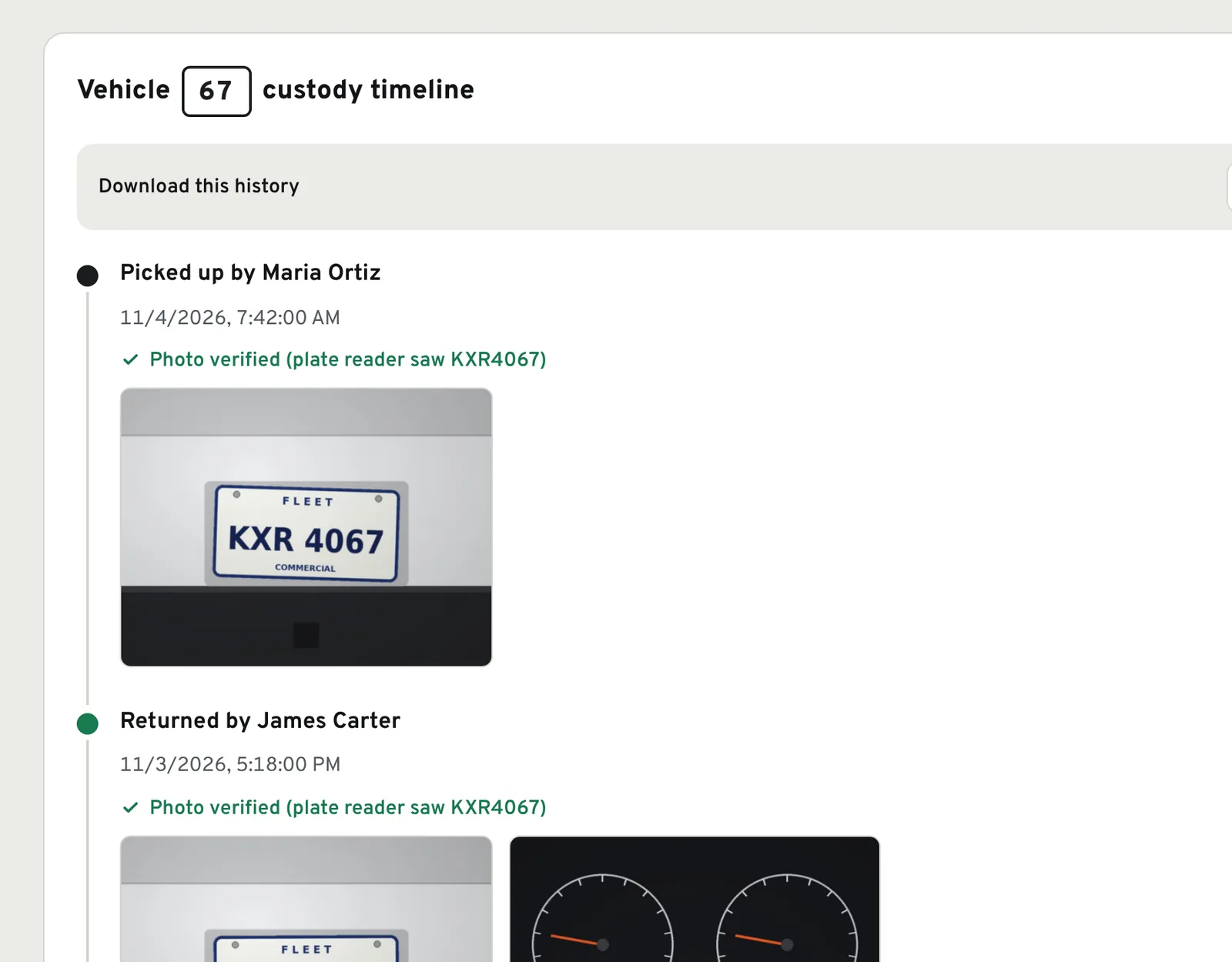
Every pickup and return, newest first, with the plate and odometer photos behind each one. Download it as CSV, Excel or PDF.
Step 7: A toll, ticket or dent comes in? Look it up.
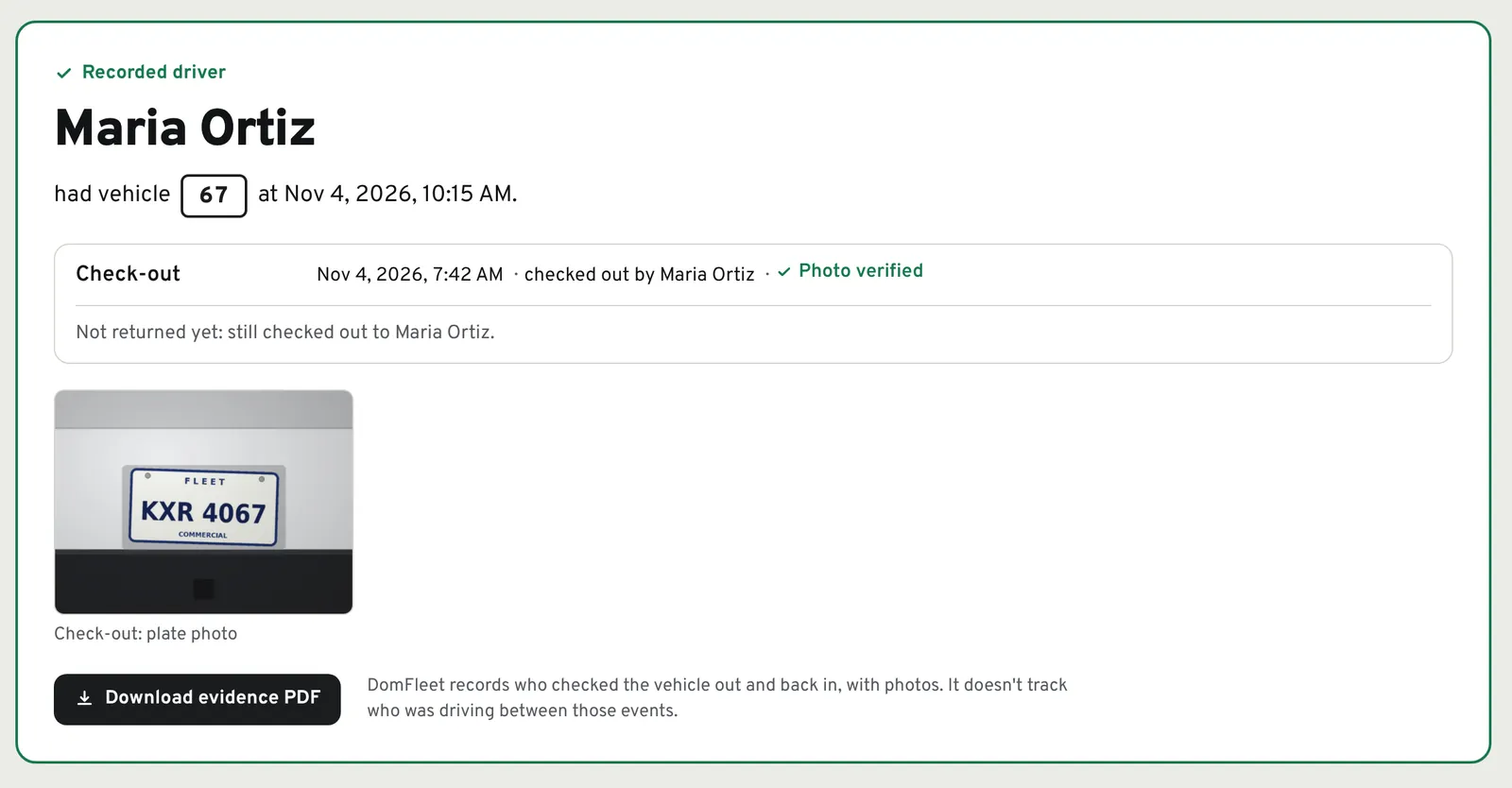
Enter the vehicle and the time on the report. DomFleet shows who had it, with the photos. If the record can't support a name, it says so instead of guessing.
Step 8: Download a one-page evidence PDF
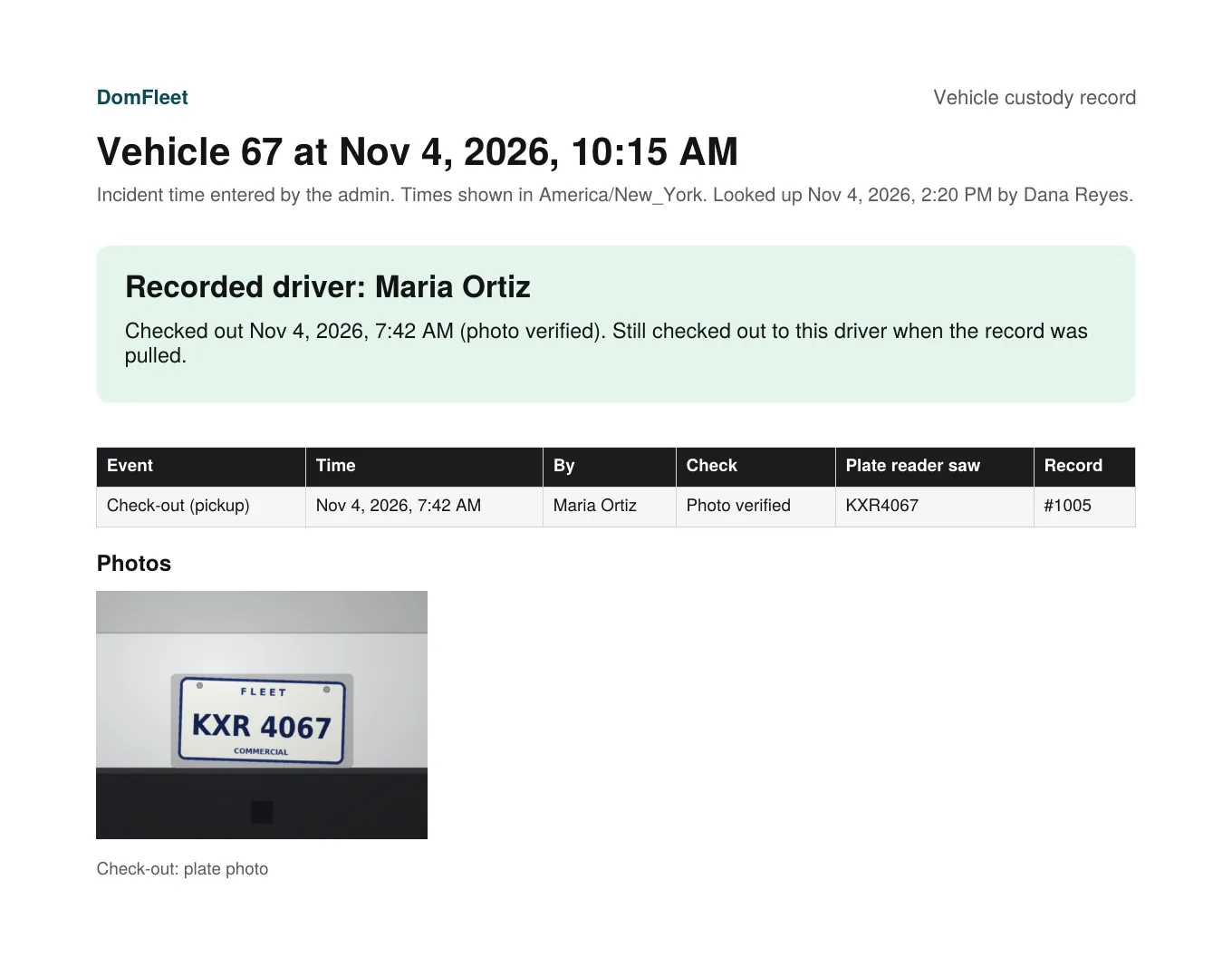
The driver, the times, how each handoff was checked, and the photos, ready to attach to a toll dispute, a damage report or an HR file.
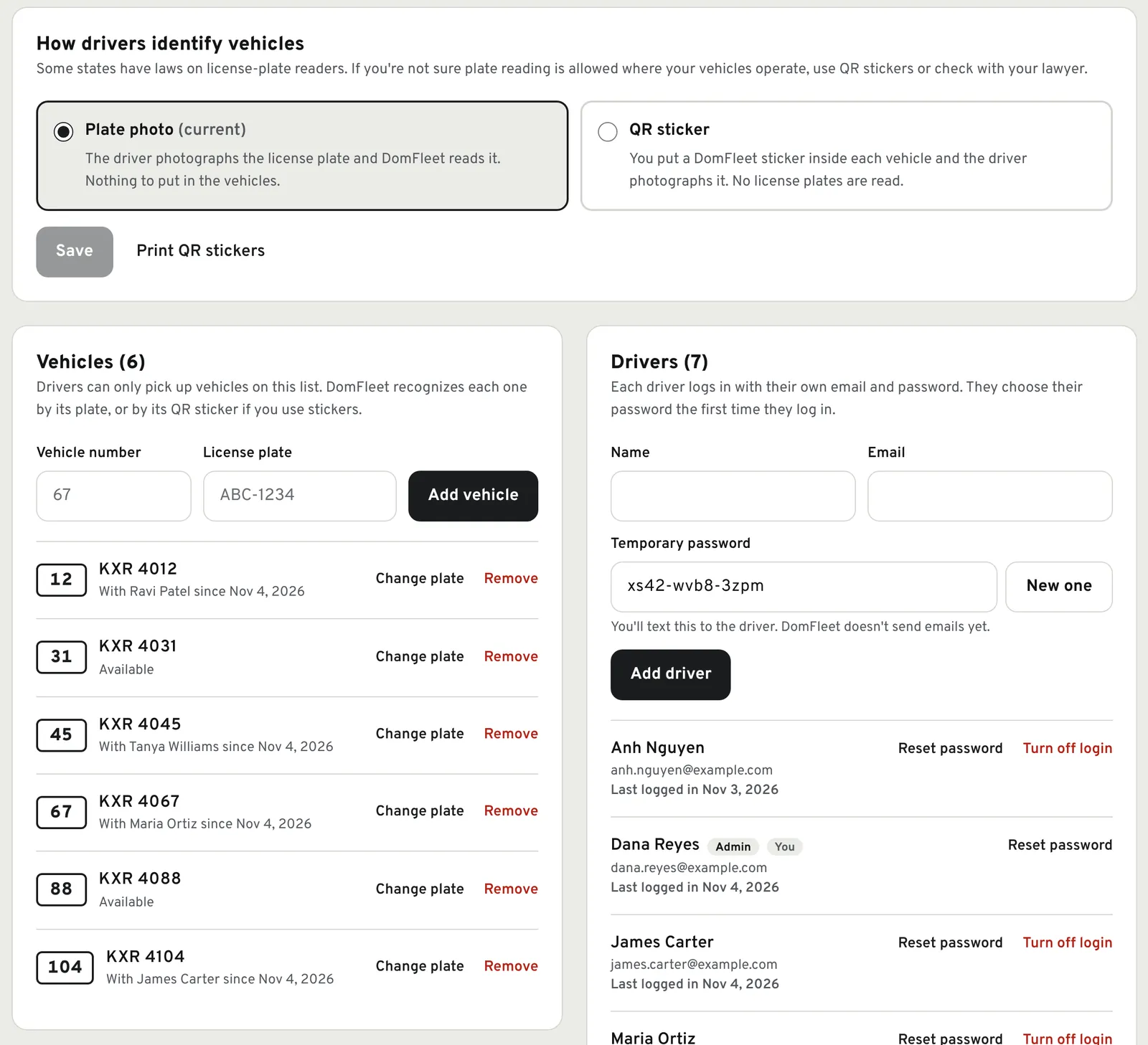
Step 9: Set it up yourself
Add your vehicles and drivers, and choose how drivers identify vehicles: a plate photo, or QR stickers you print if plate reading isn't right for where you operate.
What you need
A phone with a camera for each driver. Nothing to install in the vehicles. Want to try it at one site with 10 to 25 vehicles? Email us and we'll set up a pilot.